
YouTube Video Lagging Problem in Computer
Received PC for Repair customer said Internet browsing working properly but when we start YouTube Videos Are Lagging. PC is having AMD Athlon II x270 Old generation CPU installed with OS win10 as per information from the customer.
Slow speed sometime because of dust problem, when CPU fans Clogged by the dust & Motherboard struggling to maintain the Temperature. hence opened the Cabinet for physical inspection.
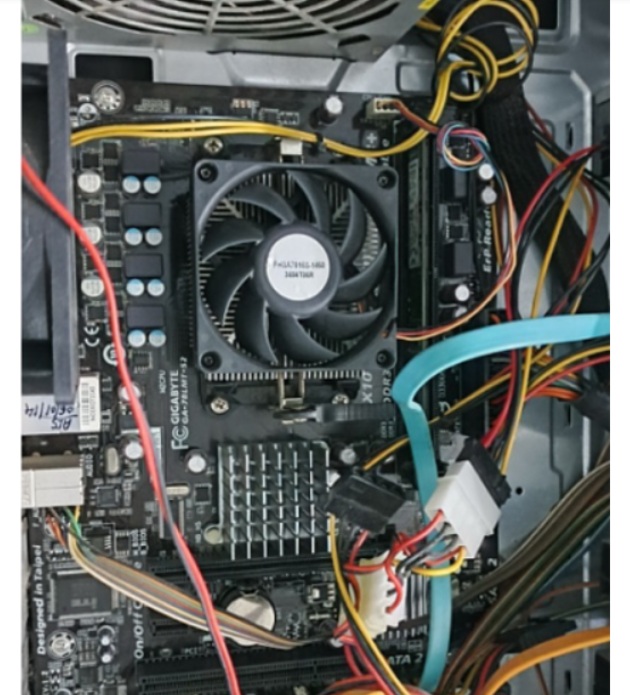
PC seems Cleaned no dust found …. tried to spin all the fans manually it rotates smoothly. Connected the PC on my setup and turned it ON. Found all FANs working fine.
OS Boot properly, now checked all resources in Task Manager everything seems OK. Opened some applications & files even some stored Videos from the HDD everything is working fine also checked Internet websites & videos from the YouTube everything works smoothly. I kept the PC working for 15 minutes then again checked PC for the performance in Task Manager this time in ideal condition CPU is showing 100% & utilized & opened internet browser this time YouTube video is lagging. Checked for background applications everything is OFF.
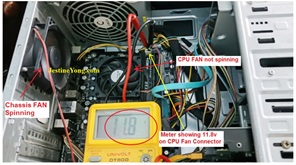
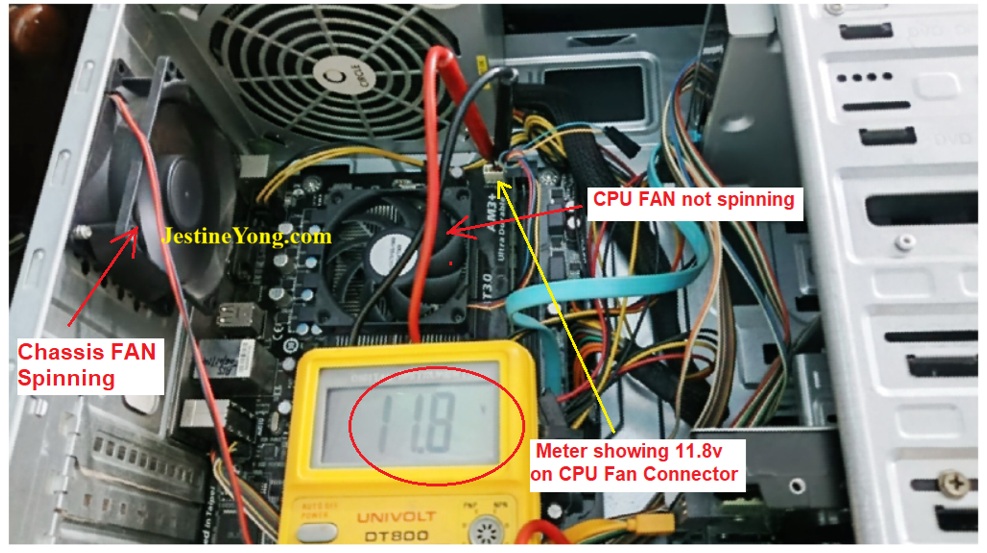
Checked Inside the PC & found CPU Fan is not spinning. Rest of two Fans (Chassis & SMPS) are working fine. I restarted the PC opened the BIOS setting & under PC Health section I found CPU Fan showing 0 RPM.
I tried to move the Fan wings by finger it started to spin & BIOS showing 2019 RPM. Kept PC running, this time fan spinning good, again I turned OFF the PC & again turned ON. This time FAN jerk but not spinning. I just pull up the CPU FAN connector & refit it; it starts spinning…Loose connection?
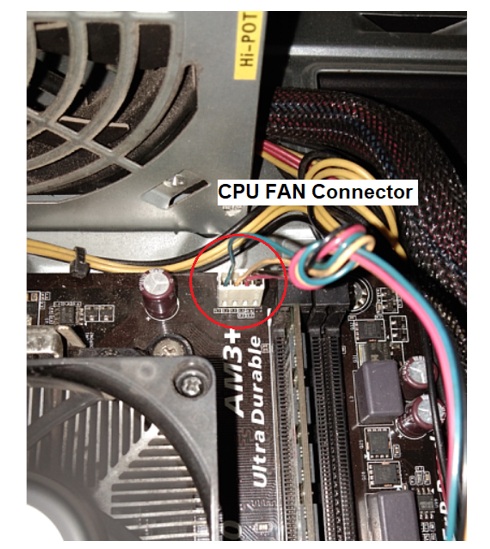
Again switched OFF the PC & restarted again, this time also FAN Not Spinning I checked Voltages on CPU FAN Connector meter shows approx. 12v. seems OK for Desktop CPU FAN.
I checked the FAN wing blades they spinning free when manually jerked by the finger, I powered the fan it starts spinning now I pressed on FAN TOP middle circle area by the finger Fan stop spinning, I release the finger still fan not start to spin. Indicates FAN lost Potential to spin. If safely giving the fan blades a manual push causes it to start spinning on its own, it almost certainly indicates a Bad FAN.
I am not having this old type fan for testing, asked customer to Wait till I arrange the part.
this original Fan is not available with our Part vendor so he provided me compatible one.
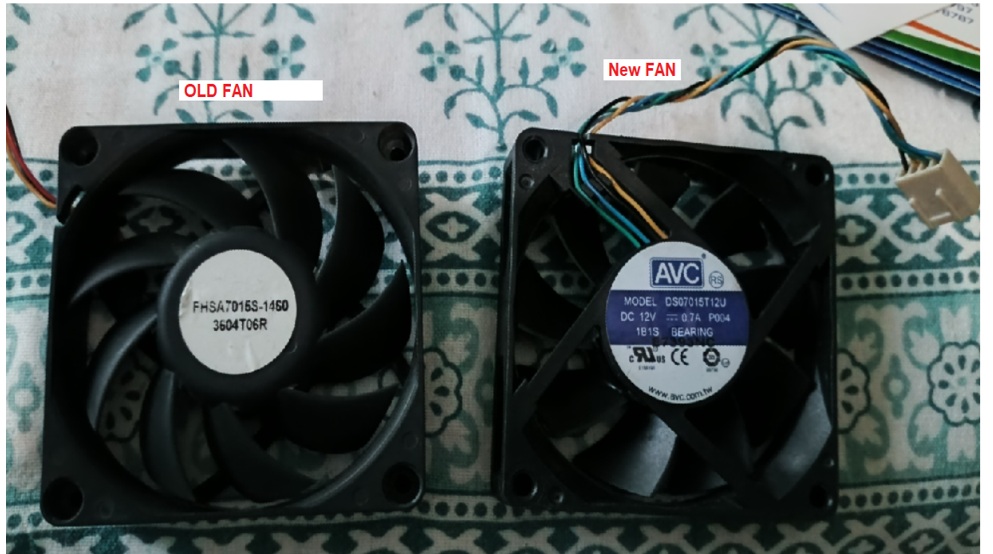
The next day, after receiving the replacement fan, I connected it to the PC. I saw that it was spinning properly…
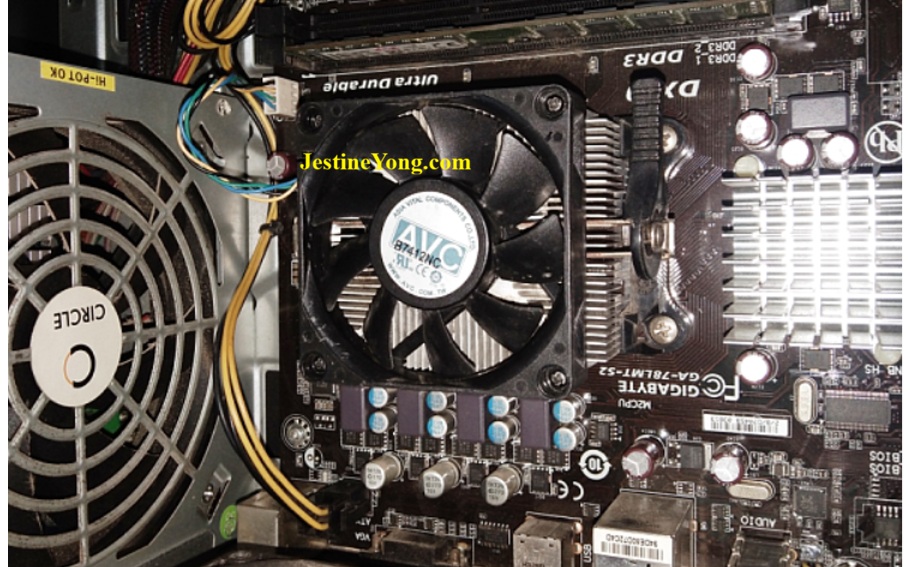
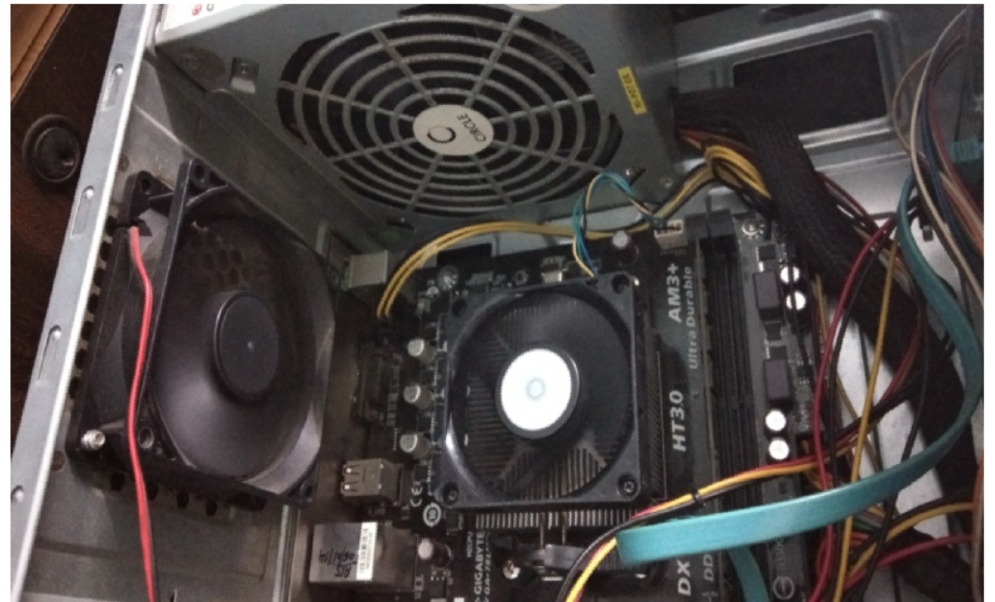
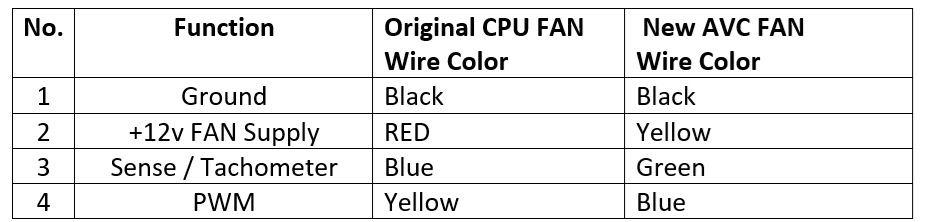
Both FANs connector having different 4 pin Colors wires as follows.
Checked working RPM under the BIOS Setting.
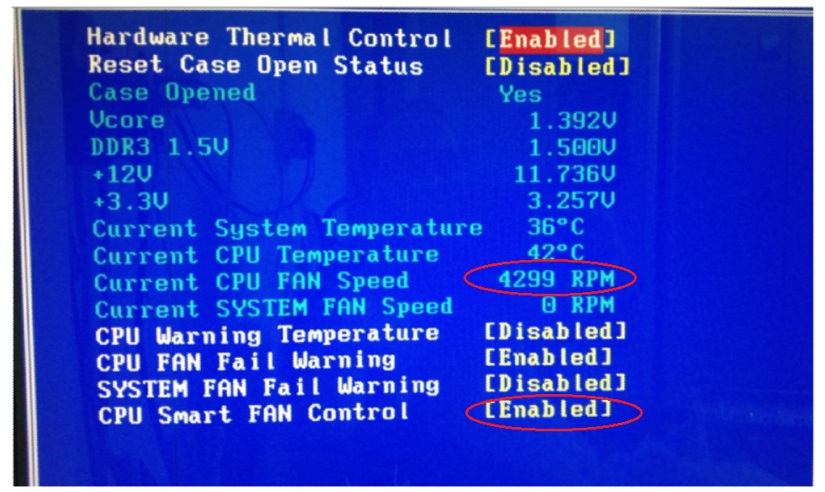
Bios Showing 4299 RPM when CPU Smart FAN control Enable.
Assembled everything back & kept the PC in Burn- in test for 5 hours. After 5 hours on idol mode CPU showing 2% Usage. it works smoothly without any lagging Videos on internet.
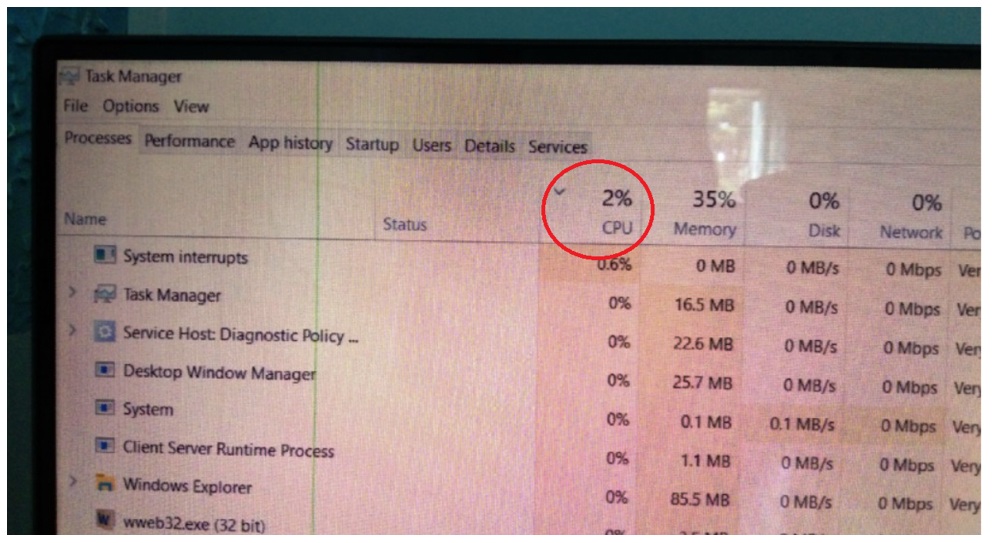
CPU is experiencing thermal throttling. When a processor gets too hot, it automatically slows down its clock speed to reduce heat and protect itself from permanent damage. This drop in speed results in noticeable lag, stuttering, or lower frame rates during games and intensive tasks.
Now this is solved Lagging in Internet videos & PC is Ready for the pickup.

This article was prepared for you by Yogesh Panchal who works as a Computer Hardware Engineer in Mumbai India.
P.S- Do you know of any your friends who would benefit from this content that you are reading now? If so, forward this website to your friends or you can invite your friends to subscribe to my newsletter for free in this Link.
Note: You can check his previous repair articles on How To Fix LED Bulb
 (41)Dislikes
 (0)
(0)
16 Comments
Leave a Reply





Arun Kumar
June 27, 2026 at 4:50 pm
Hat's off to you Sir
Yogesh Panchal
June 28, 2026 at 5:04 pm
Thank you! Arun Kumar
corriette cyrille
June 27, 2026 at 5:51 pm
Thanks for sharing another episode. Keep doing the satisfying works. Thanks for sharing.May your eyesight remain to help those who can't help themselves.
Yogesh Panchal
June 28, 2026 at 5:05 pm
Your Welcome!corriette cyrille
Kevin Davison
June 27, 2026 at 5:58 pm
Excellent find! Intermittent problems are always the toughest to find, and often the most rewarding to solve.
Great work, as always.
Yogesh Panchal
June 28, 2026 at 5:07 pm
Thank you!Kevin Davison
Fault finding in Computers is unpredictable Task.
Andrew F Ali
June 27, 2026 at 7:20 pm
Nice work. Very well done!!!
Yogesh Panchal
June 28, 2026 at 5:07 pm
Thank You! Andrew F Ali
Albert van Bemmelen
June 27, 2026 at 9:09 pm
This at first looked a lot like a intermittent recurring problem. But luckily you could pinpoint right to the exact cause of the issue without much delay! From experience I guess that most brushless fan's that have no ball baring have a lesser life span.
Like those 24V 6015 mainboard 3-wire cooler fans used in my K1C 3D printer (type marking EFS-06C 24L) that within a year or 2 will start making much noise. And only can be replaced with a new one to solve the issue.
Yogesh Panchal
June 28, 2026 at 5:14 pm
Thank You!Albert
High-end or industrial cooling fans use ball bearings, whereas many standard CPU and case fans utilize sleeve bearings (a type of bushing system) to keep costs and initial noise levels low; furthermore, in my personal experience, they last for decades if maintained properly.
Parasuraman S
June 27, 2026 at 11:17 pm
Excellent professional fix and I salute you for the infos shared. Many thanks, dear Yogesh Bai!
Yogesh Panchal
June 28, 2026 at 5:17 pm
Thank you! Sir,
Mark J
June 28, 2026 at 2:50 am
This happens a lot with GPU's on graphics cards. Good article thank you for sharing Yogesh.
Yogesh Panchal
June 28, 2026 at 5:37 pm
Thank you! Mark J
you are right CPU & GPU Needs Proper cooling.
Imoudu.O
June 28, 2026 at 11:23 pm
Good acticle friend,I want to presume same happens to tv microprocessor in mainboard when it starts getting hot,tv goes to intermittent on/off process.
Yogesh Panchal
July 1, 2026 at 12:35 am
Imoudu.O
You Are Right,Temperature plays a crucial role in today's new technology.